Learn how to efficiently manage your eBay inventory by importing and exporting listing data through the Frooition platform. This guide simplifies the process of refreshing drafts and bulk updating your listings using CSV files.
Listing Draft Import
1. Navigate to https://freedom.frooition.com/ebay/listing/
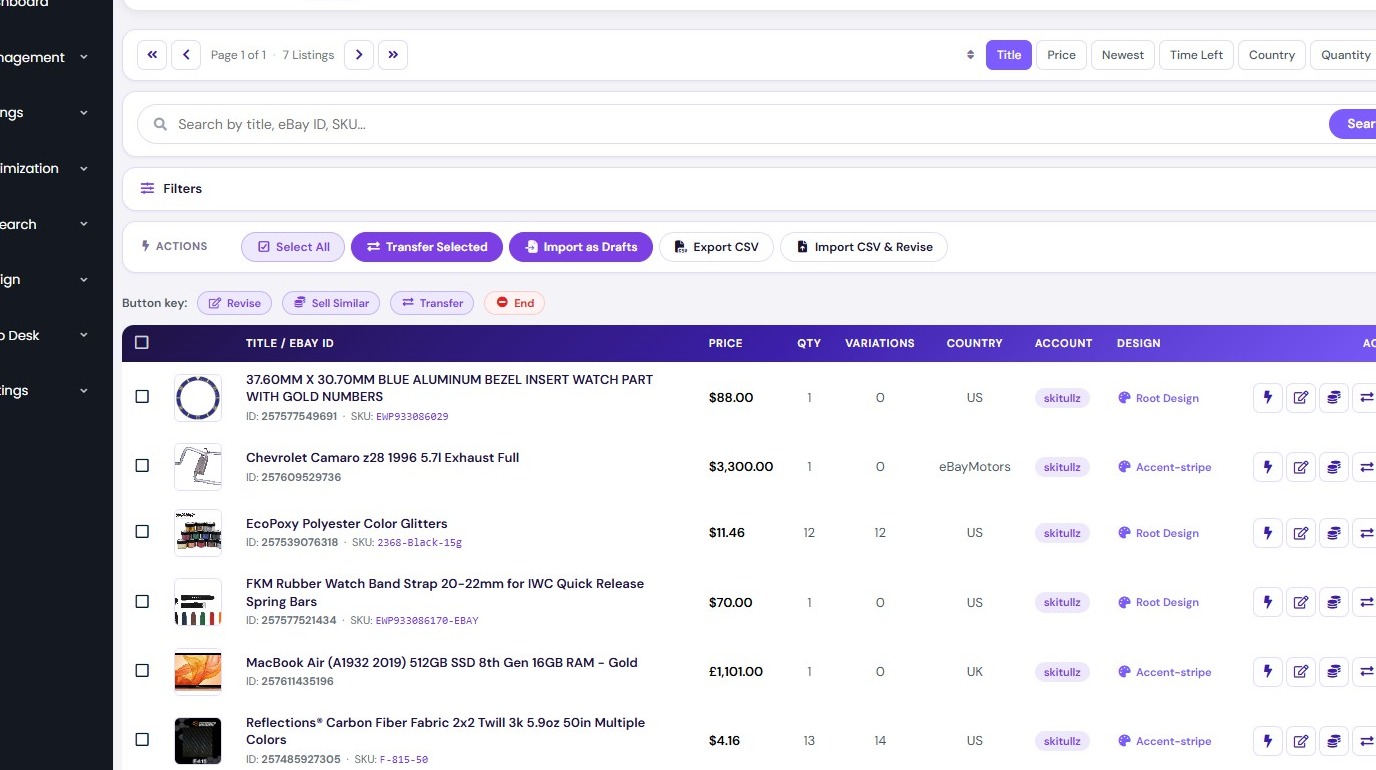
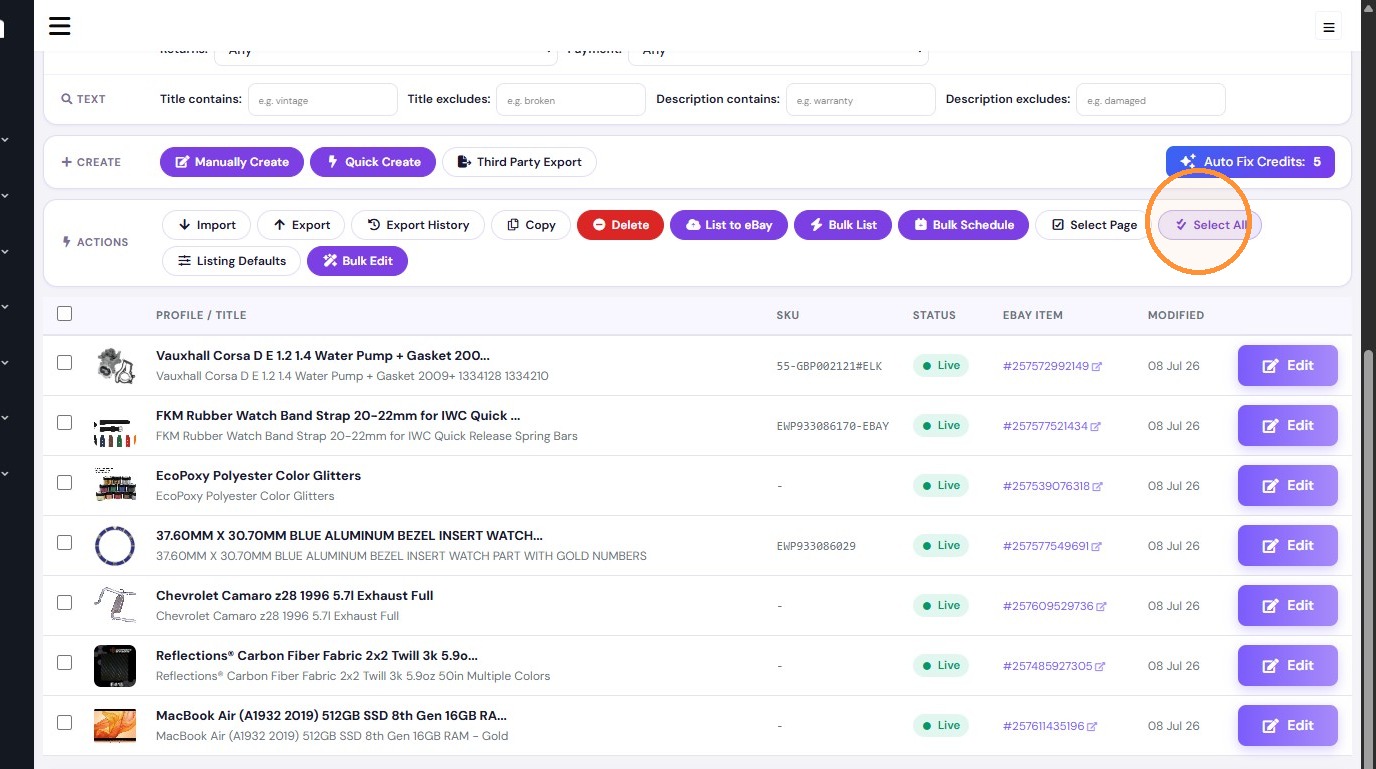
2. Click "Select All"
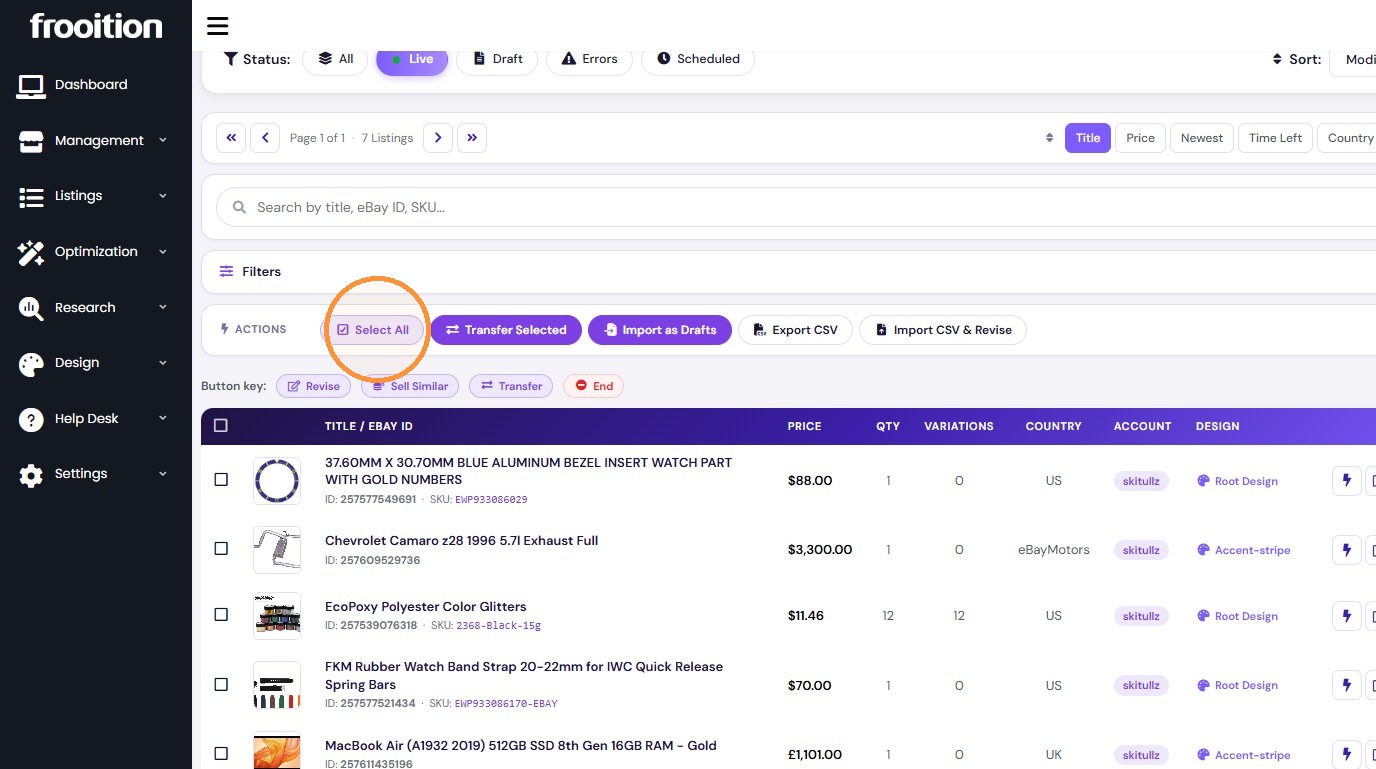
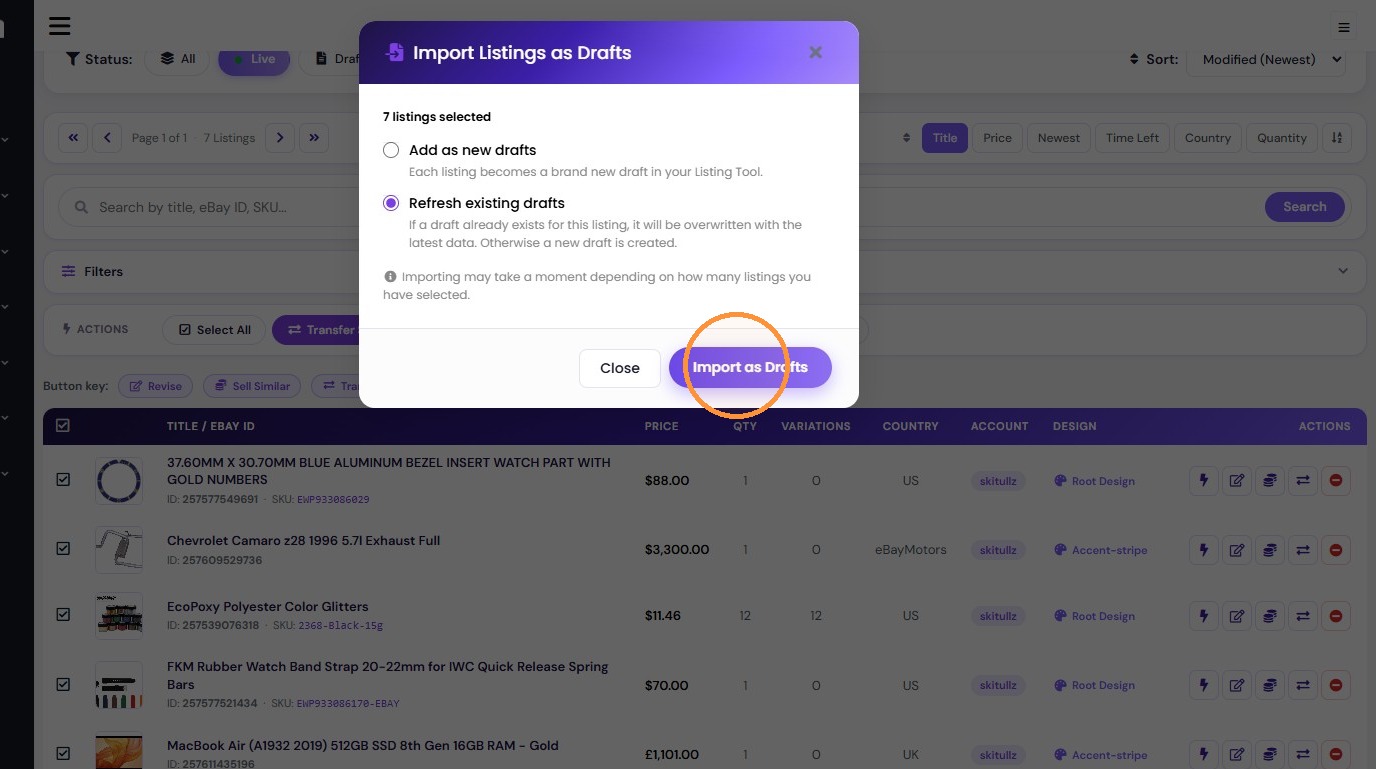
3. Click "Import as Drafts"
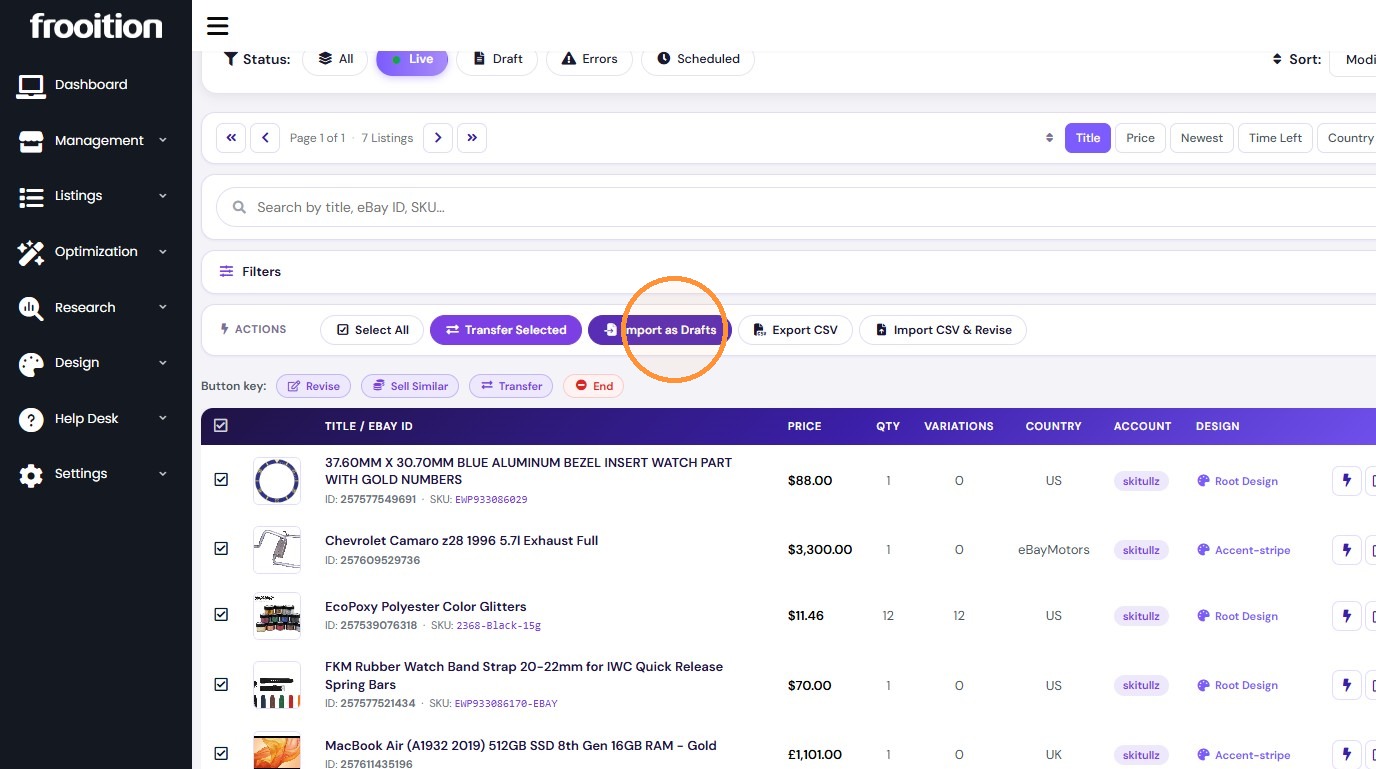
4. Select 'Refresh existing drafts' and click 'Import as Drafts' to confirm.
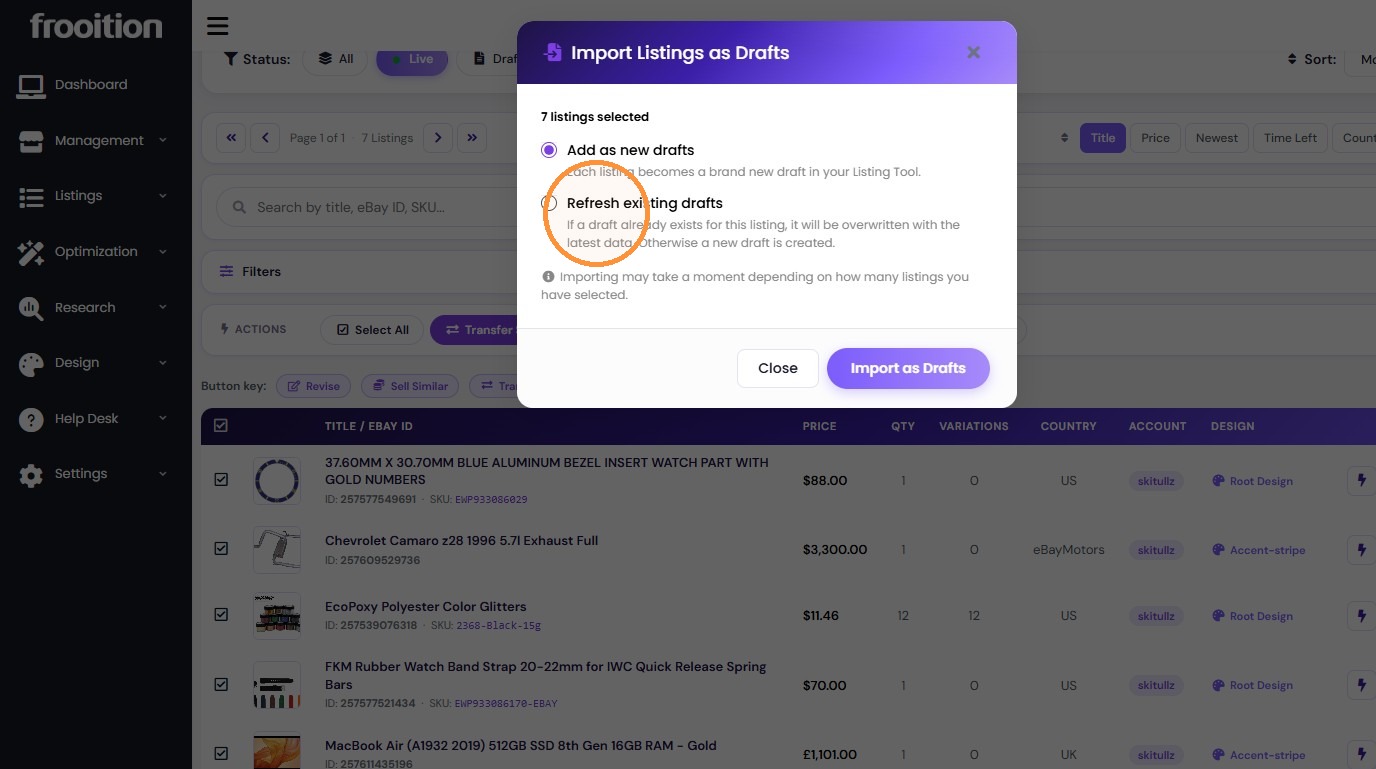
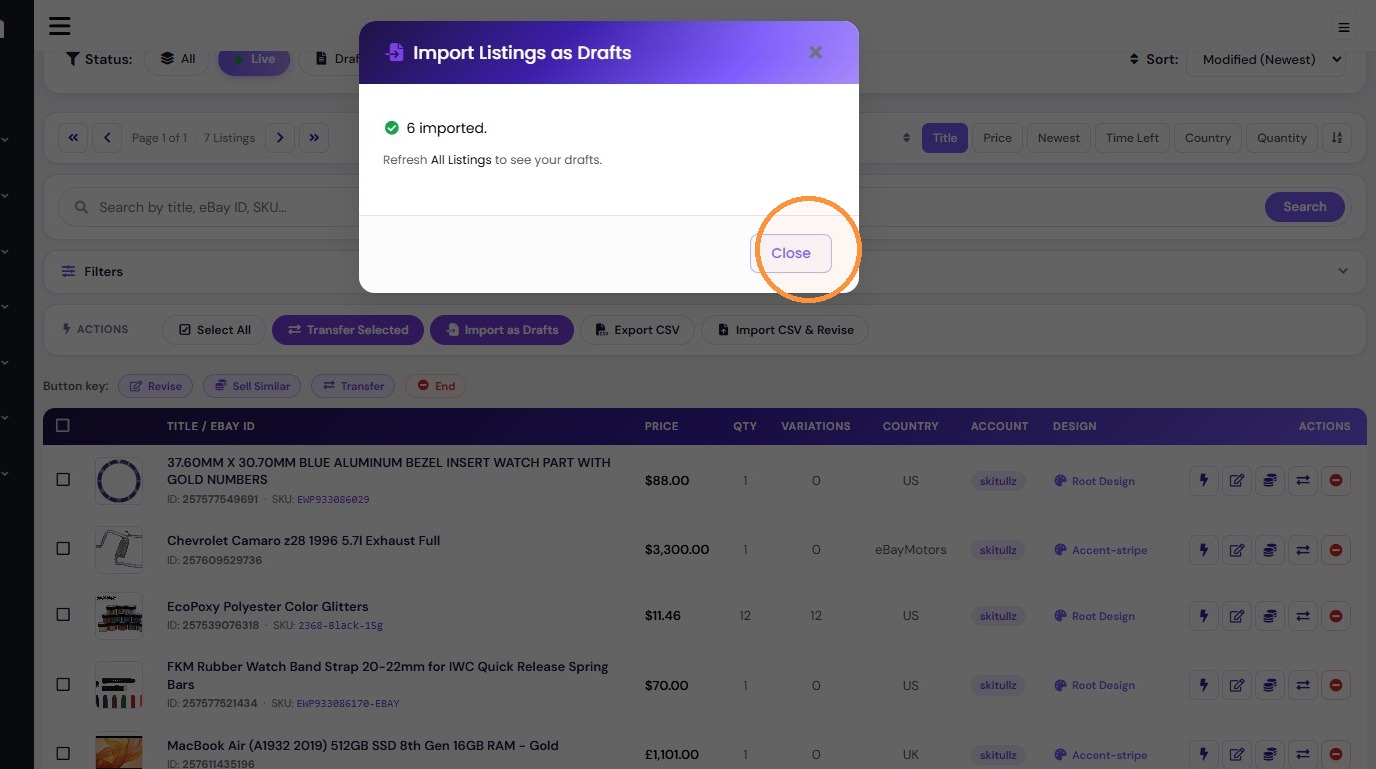
5. Close the draft import success dialog.
Data Filtering and Export
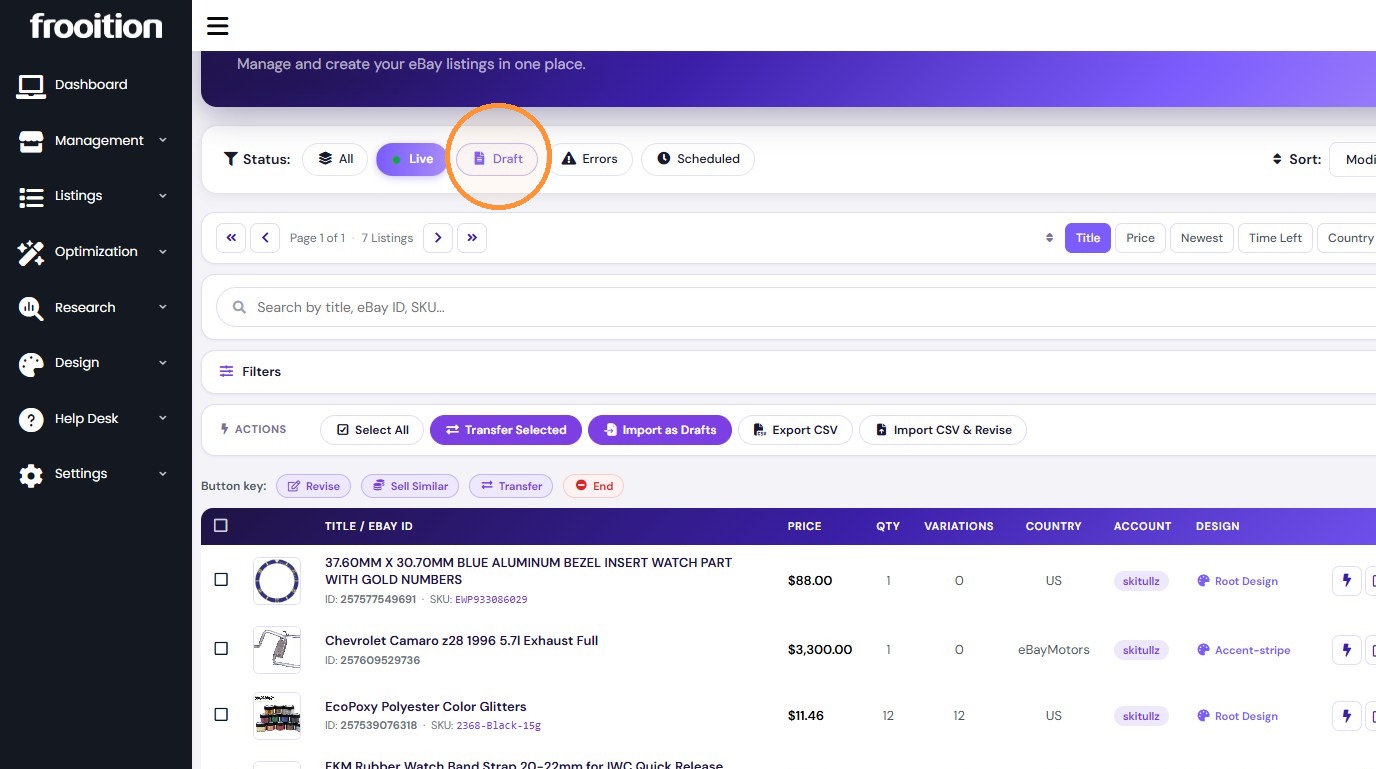
6. Select the 'Draft' status filter.
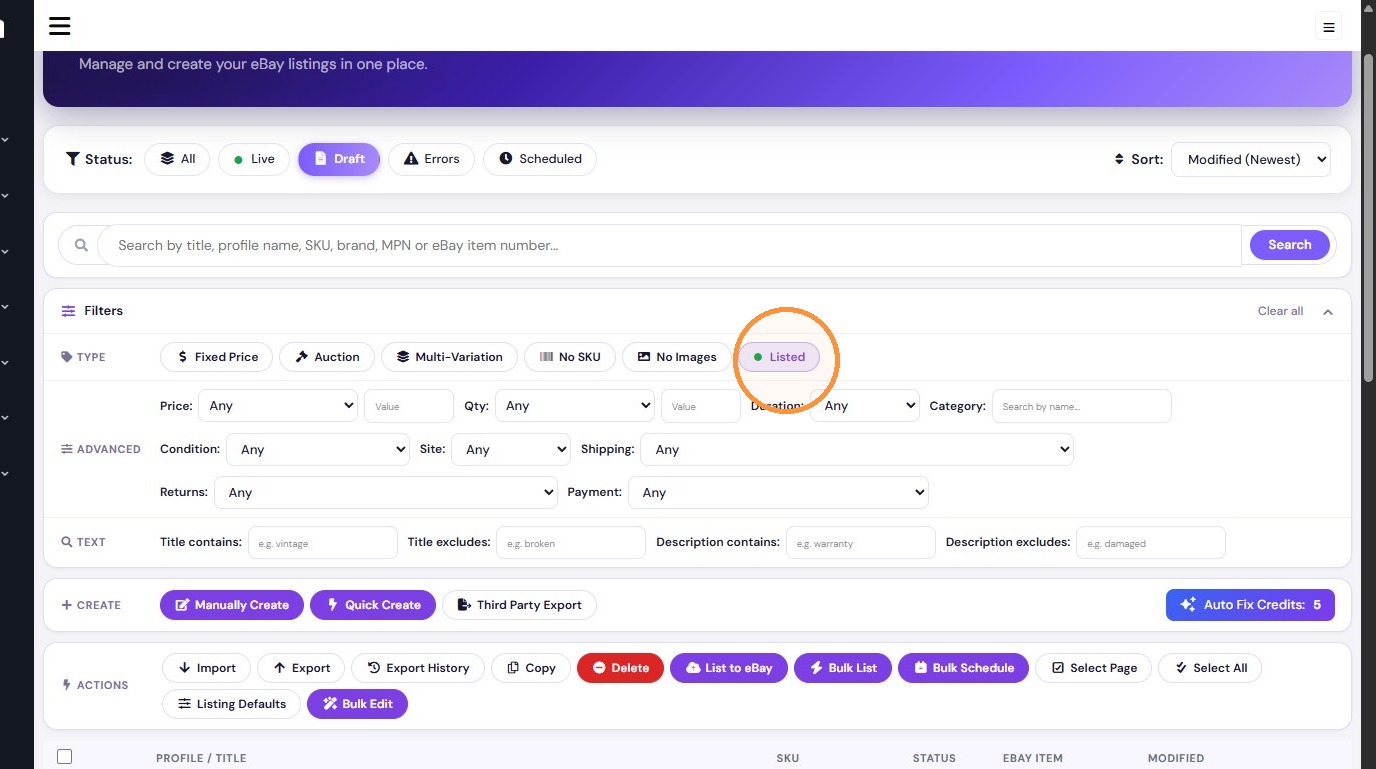
7. Apply the 'Listed' filter.
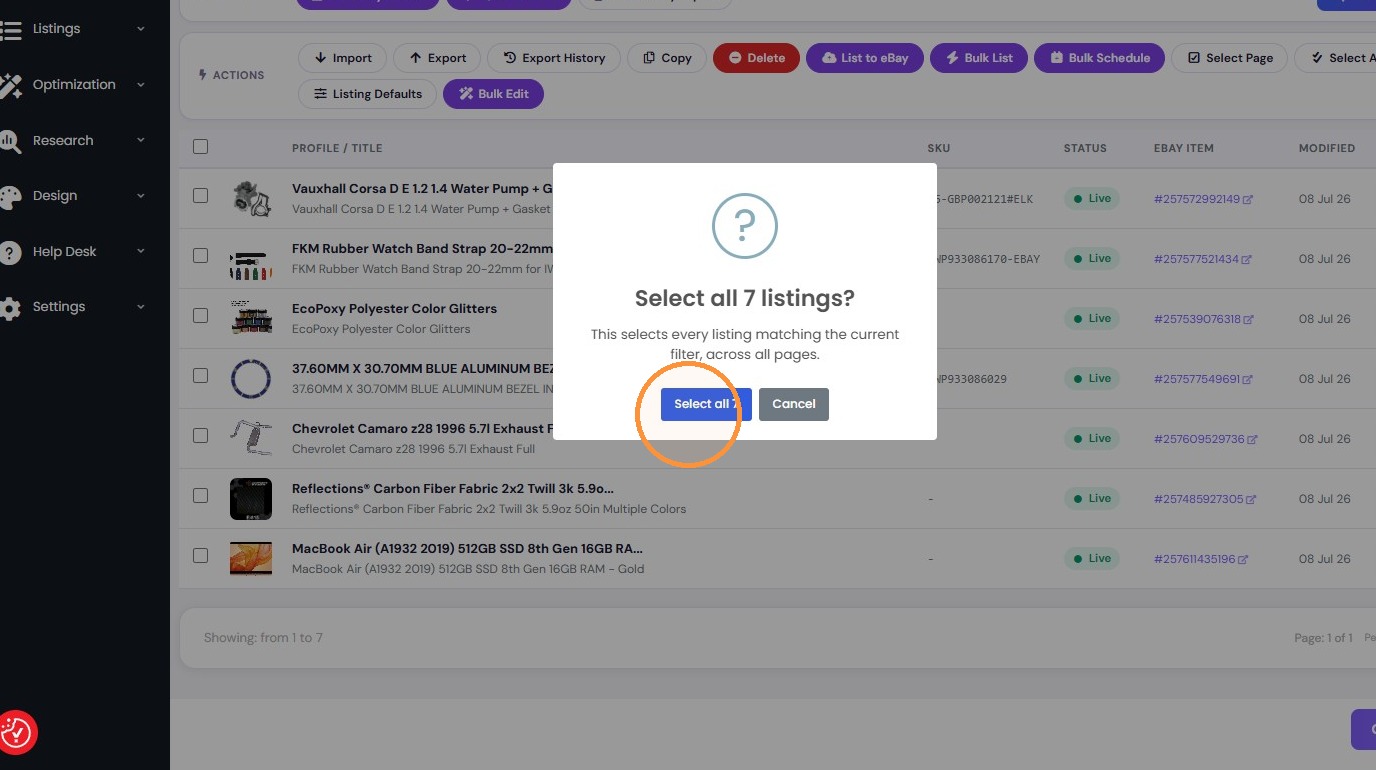
8. Select all listings matching the current filter across all pages.
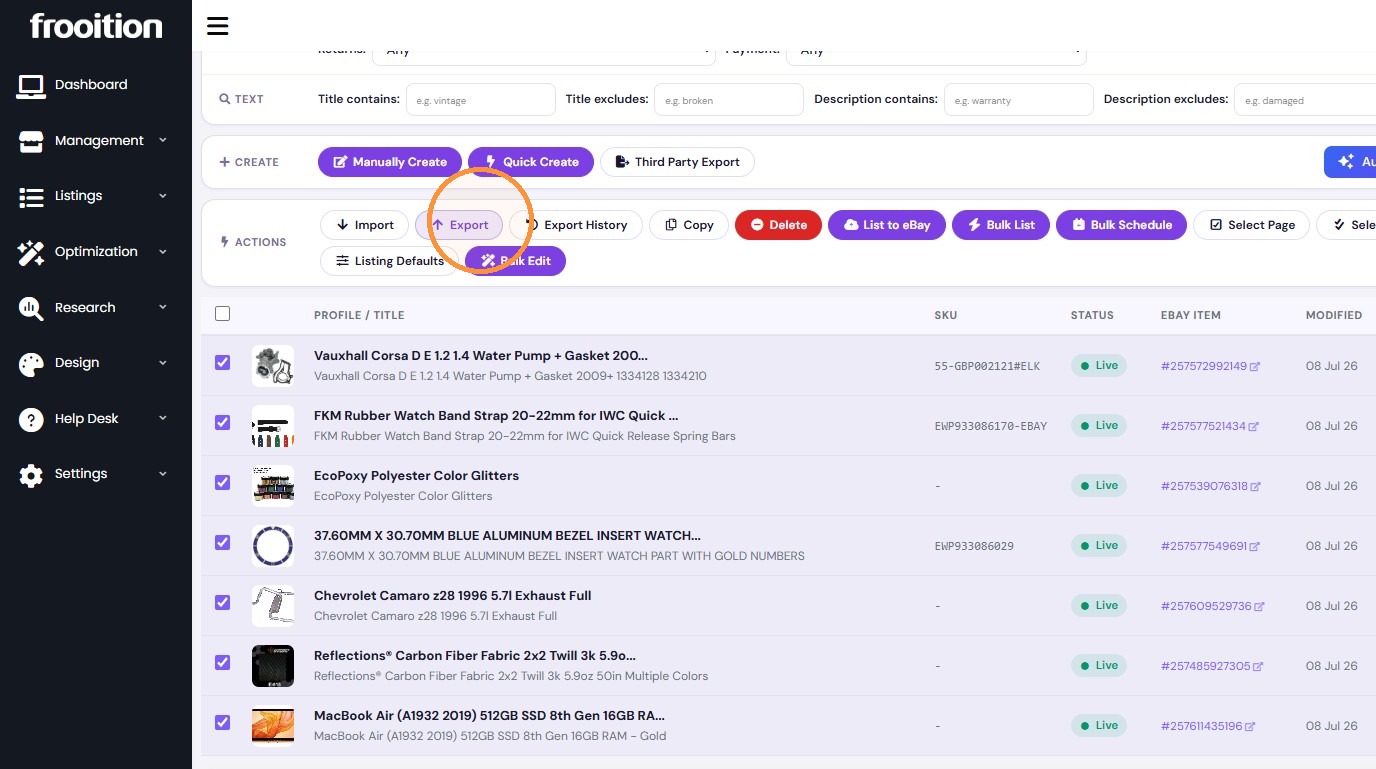
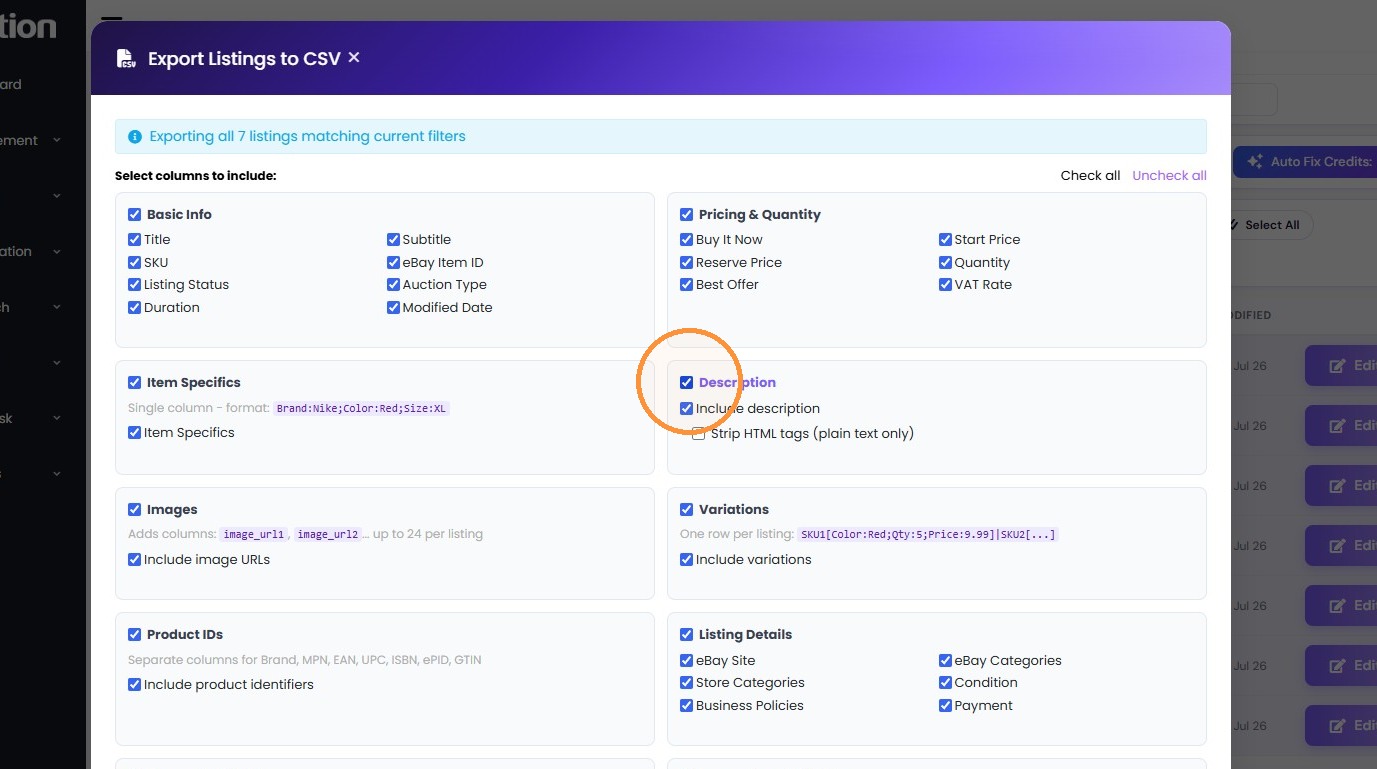
9. Open the export configuration window.
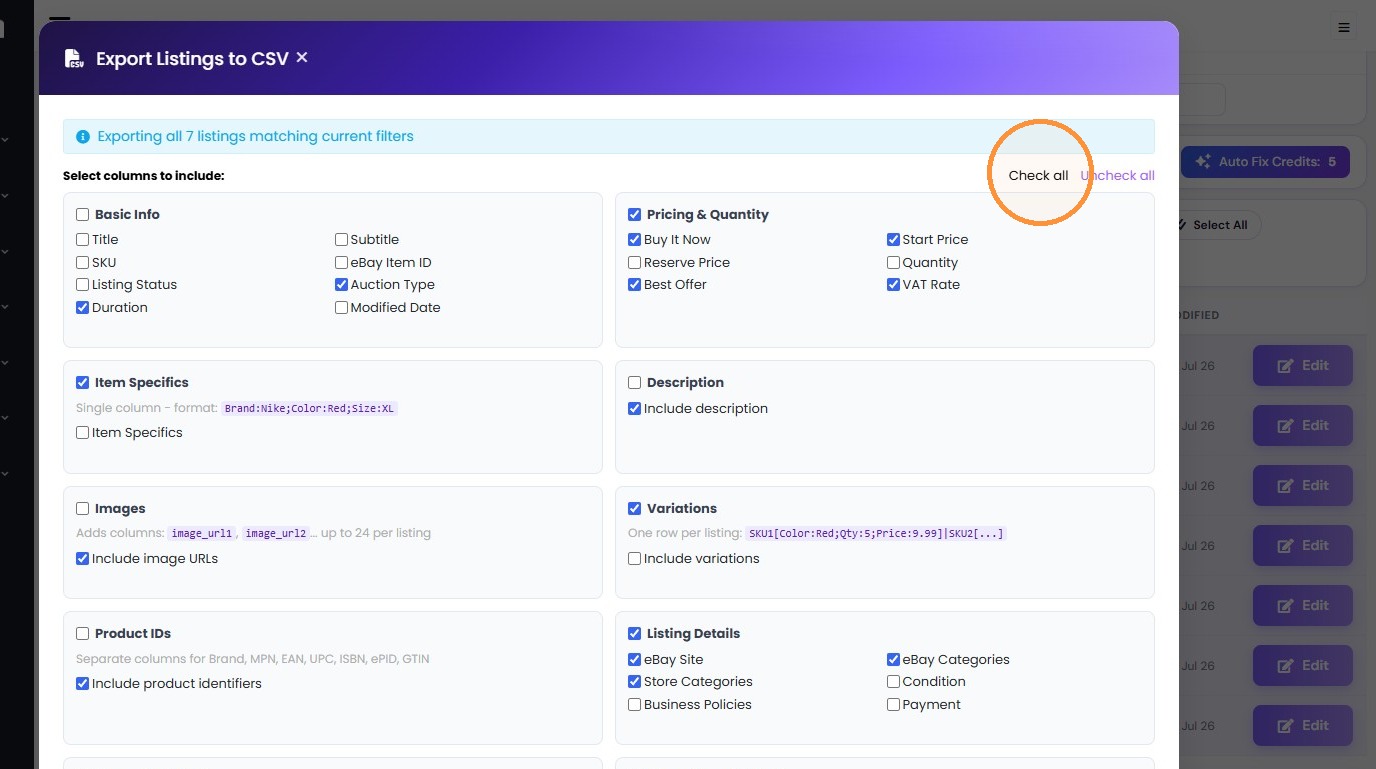
10. Use 'Check all' to include all columns, including descriptions, in the export.
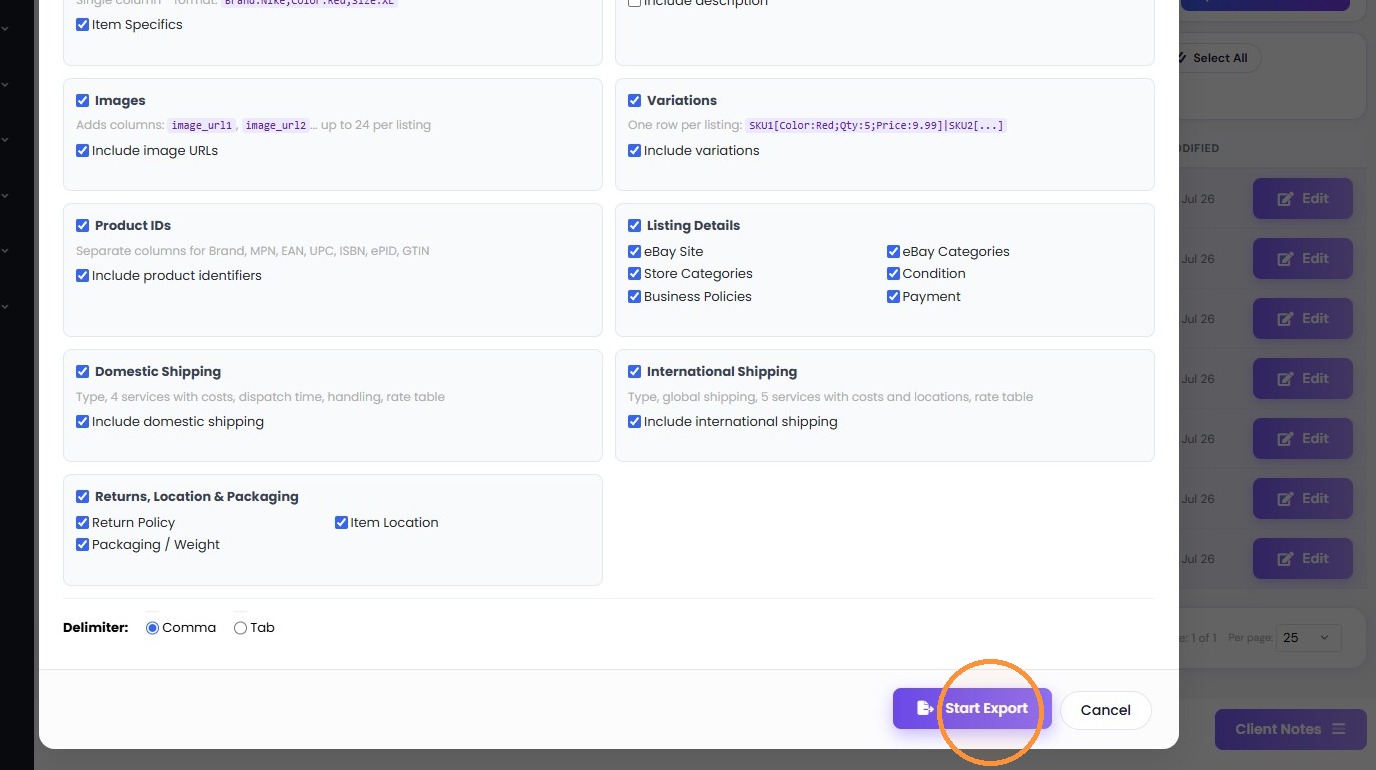
11. Click "Start Export"
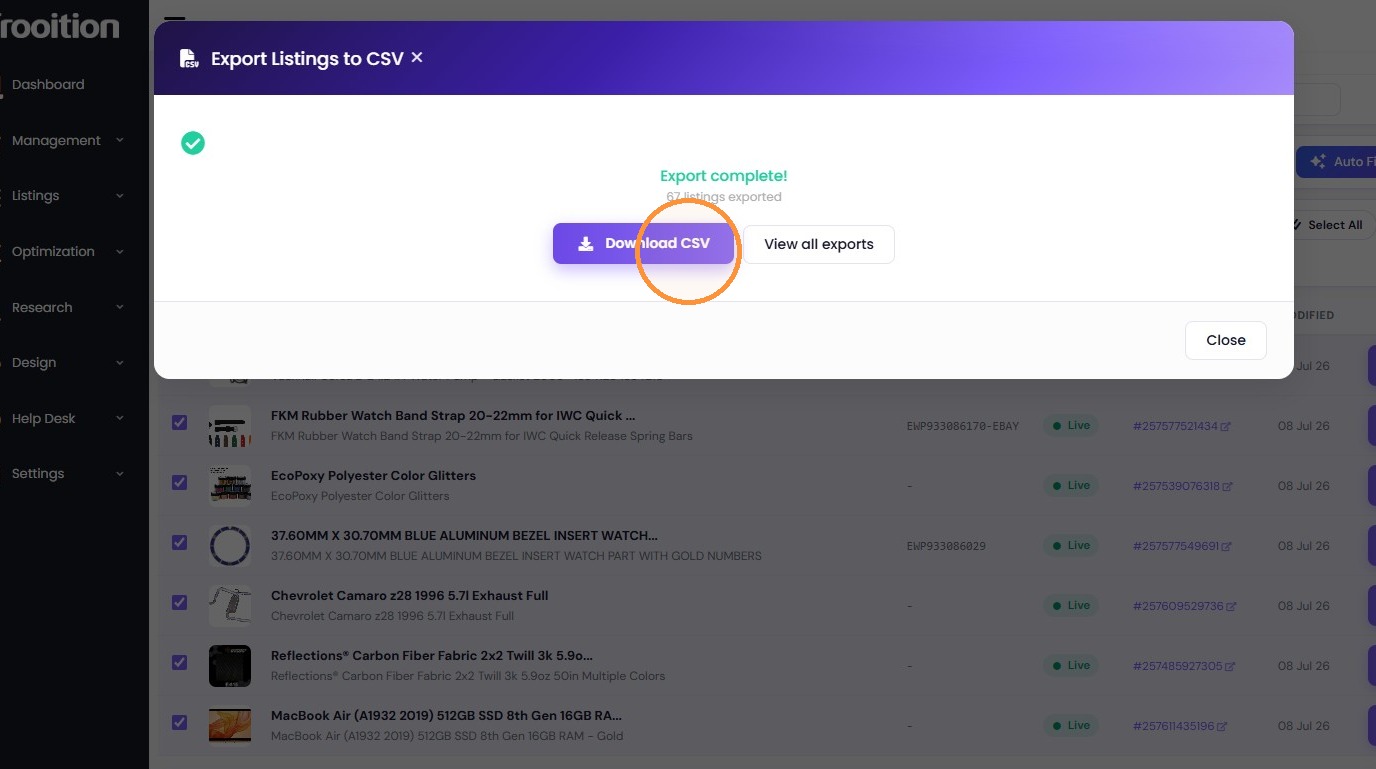
12. Click "Download CSV"
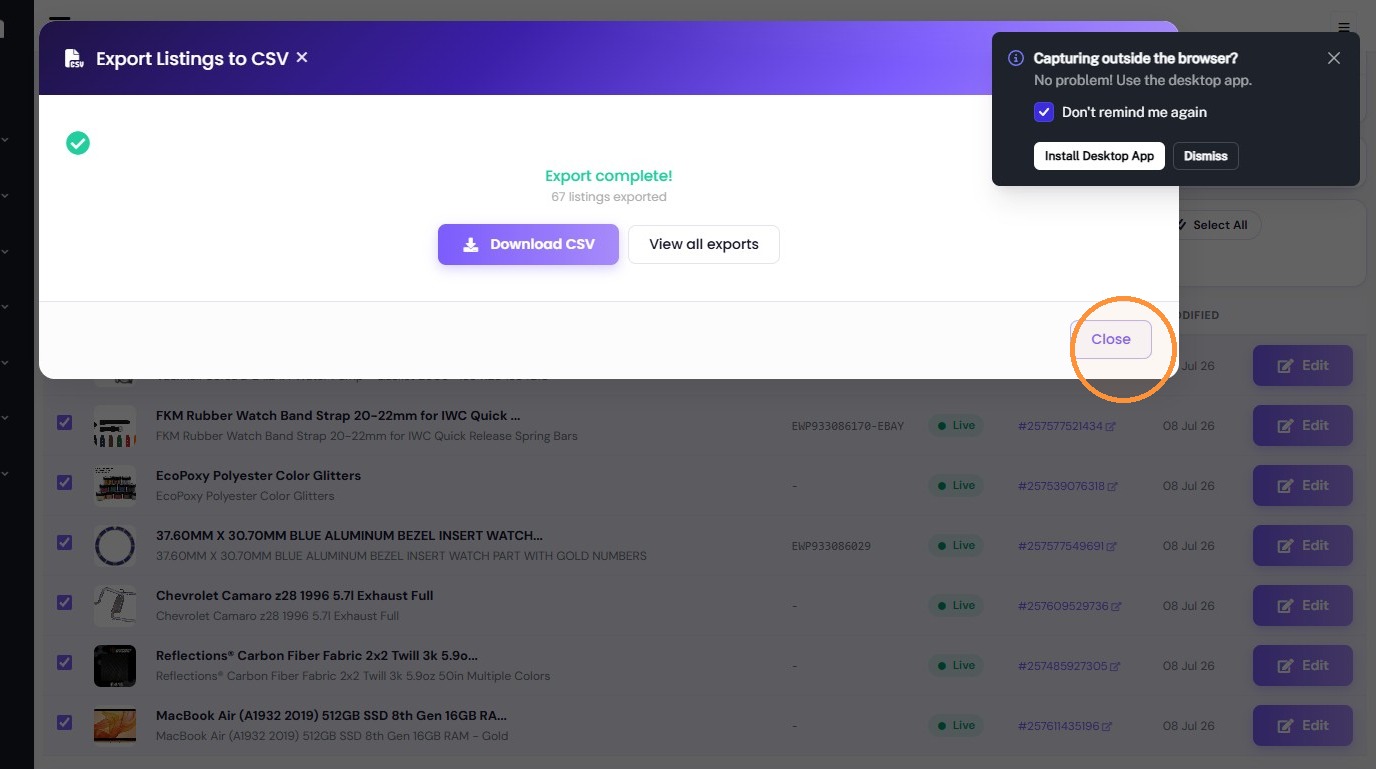
13. Close the export summary window.
Bulk Update Re-import
14. Navigate to the Import tool.
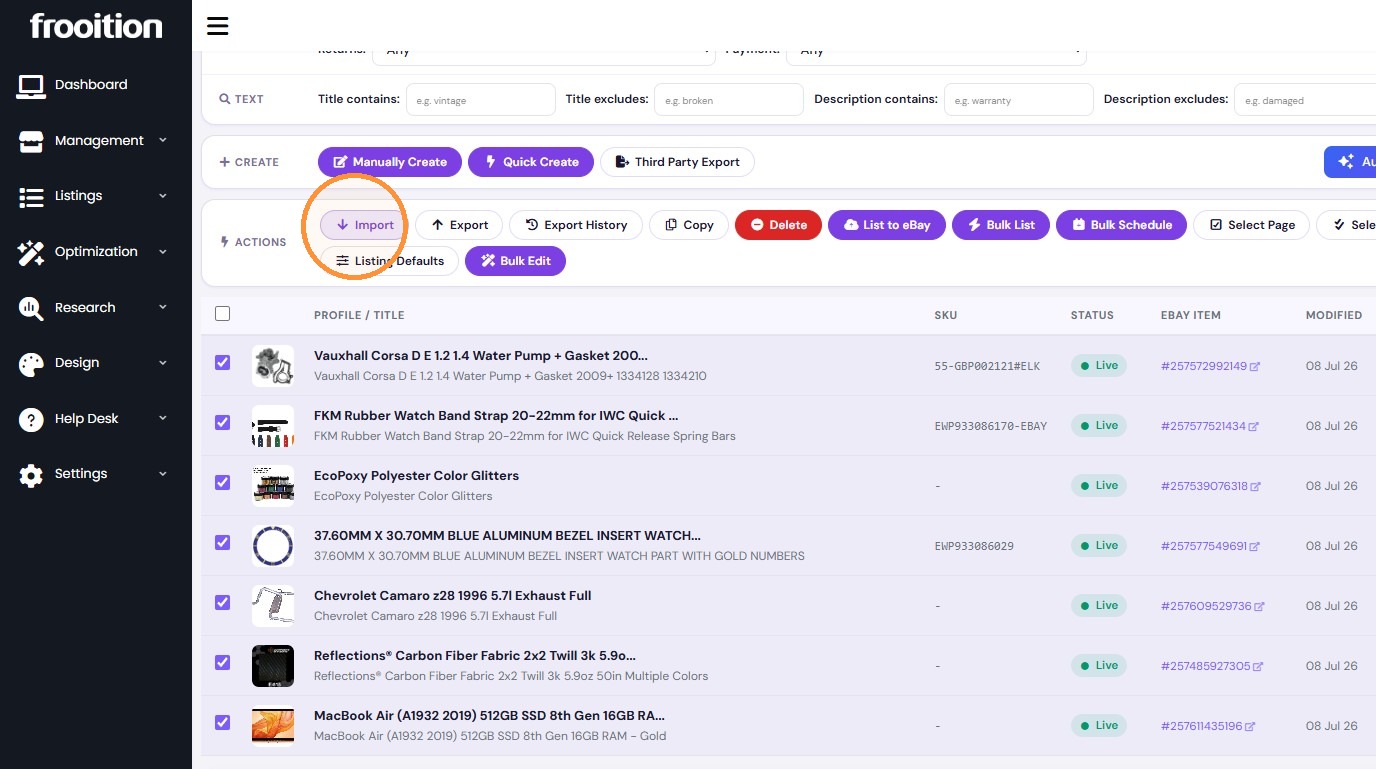
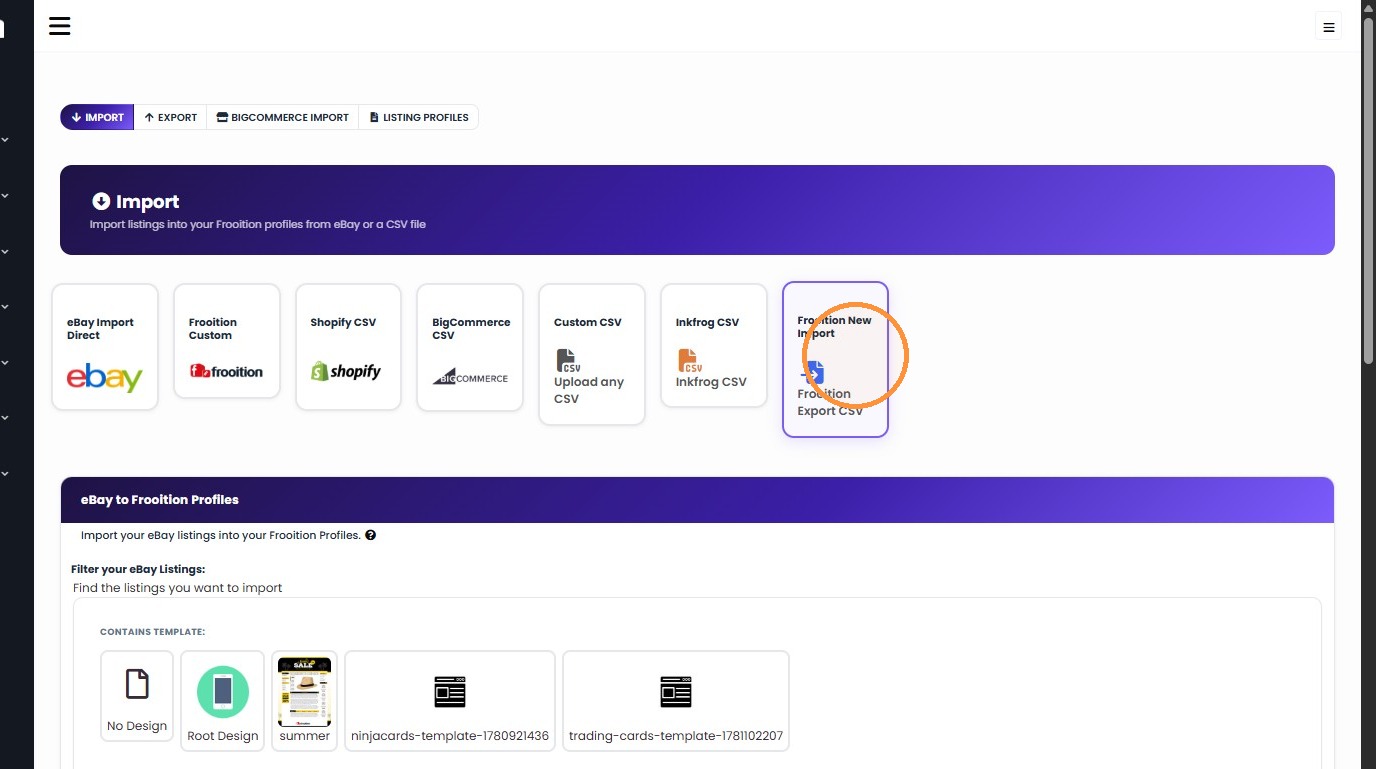
15. Click "Frooition New Import"
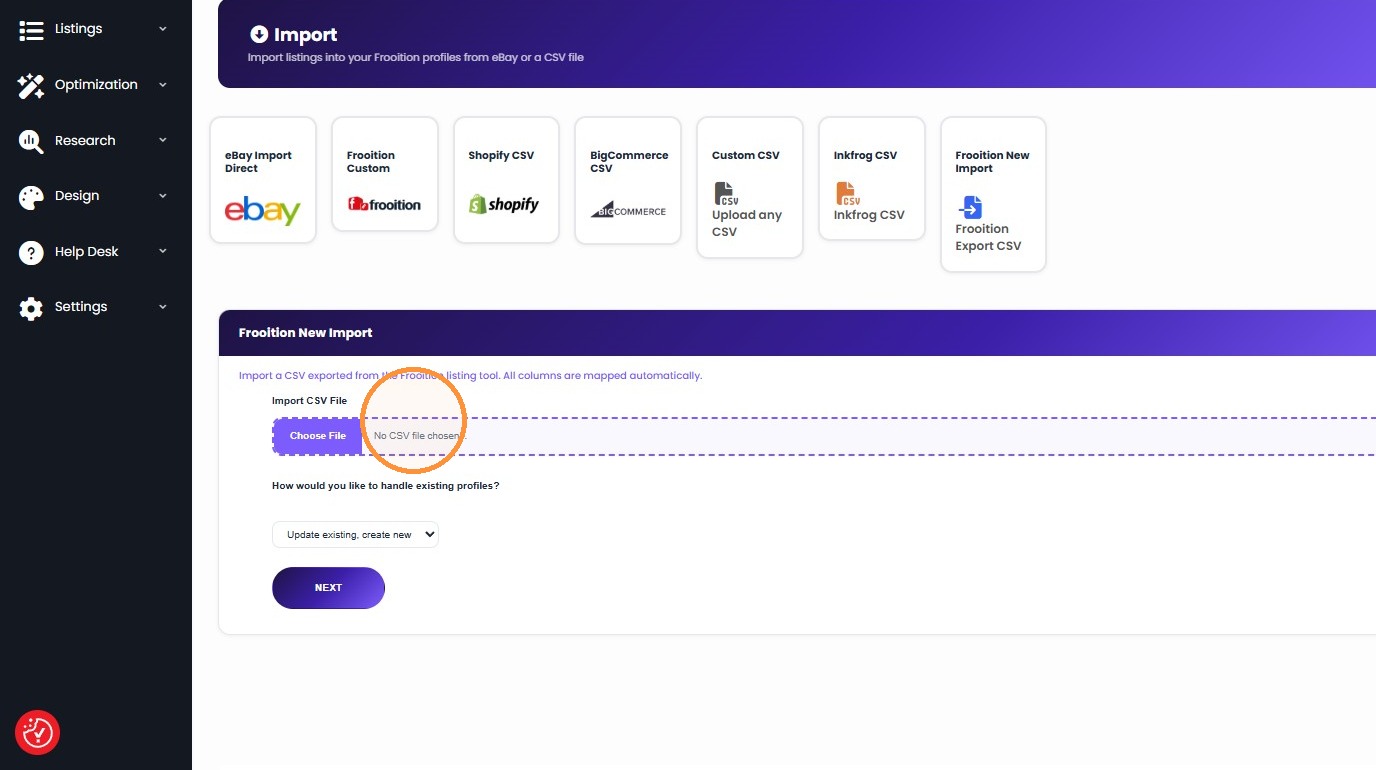
16. Upload the CSV file and click 'NEXT' to proceed.
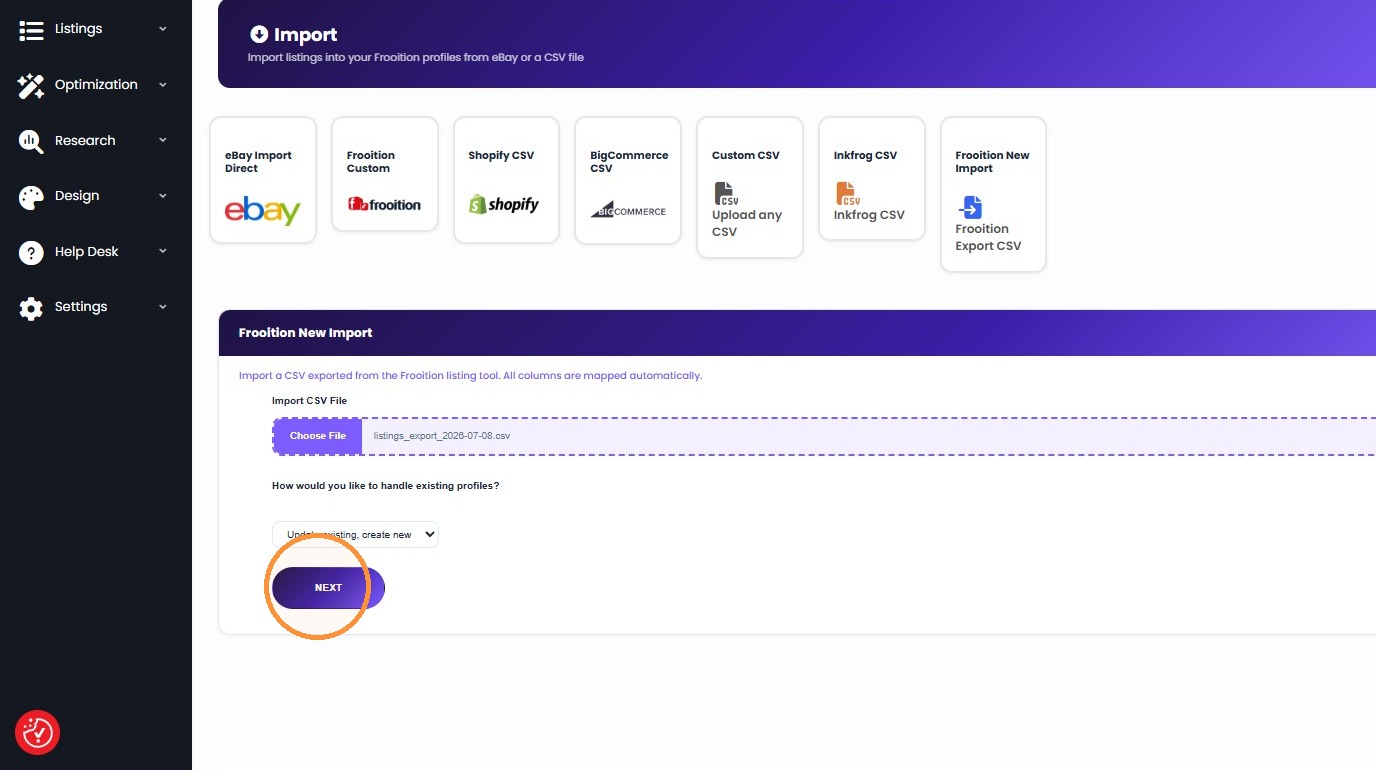
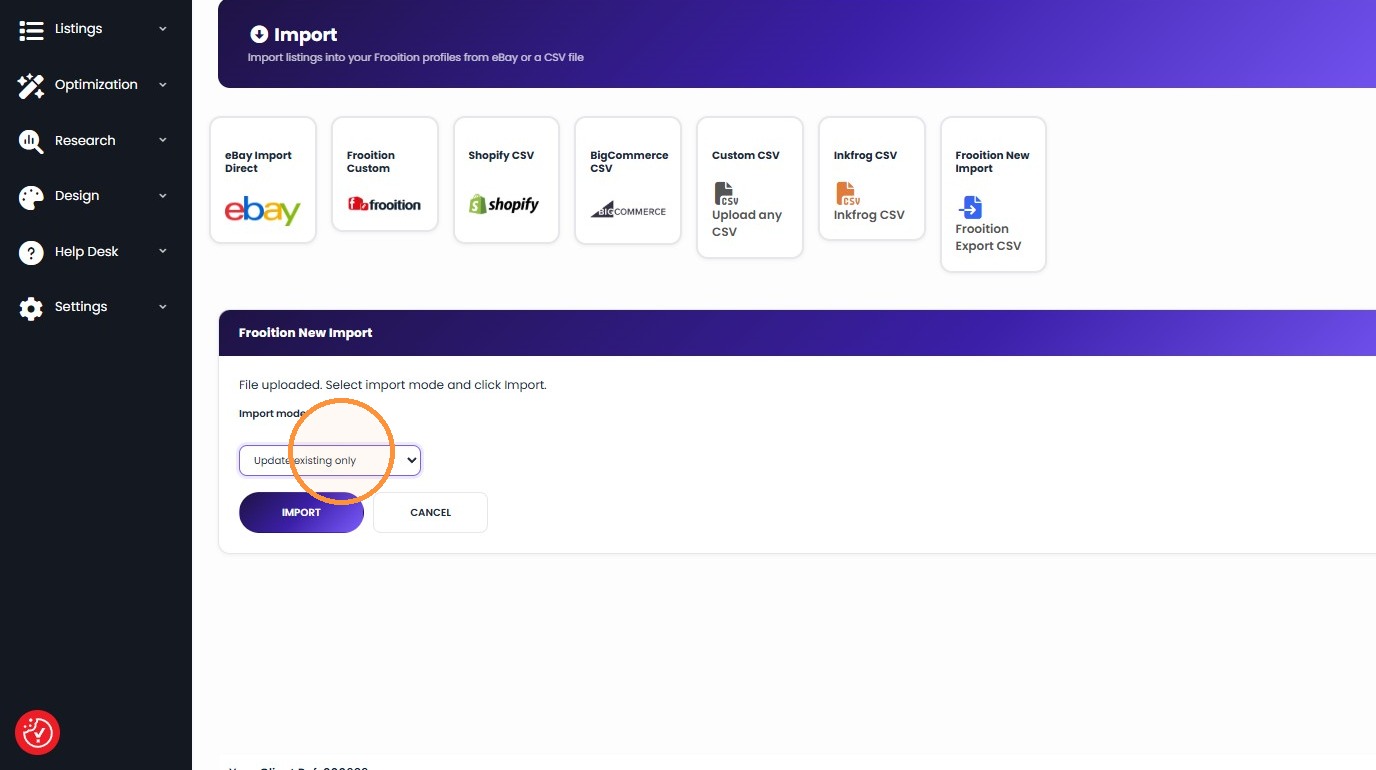
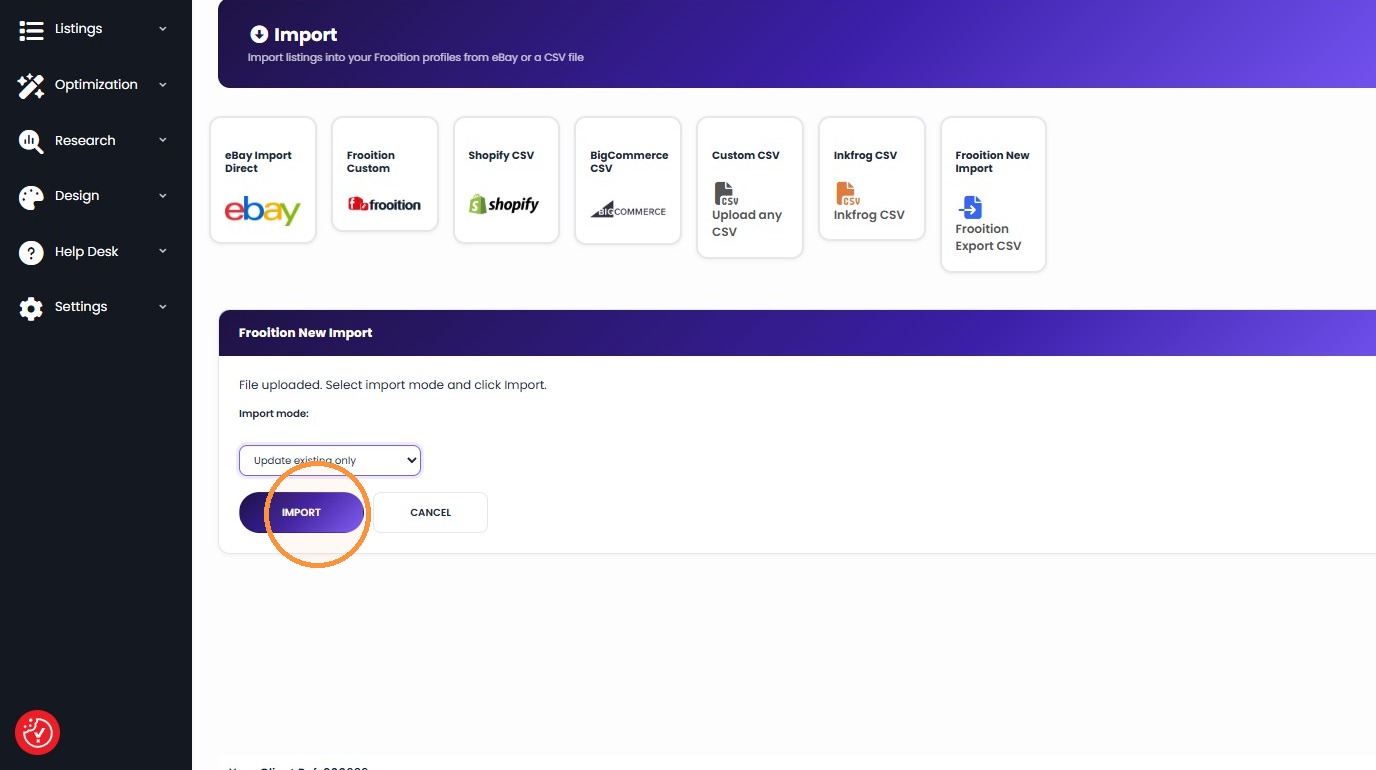
17. Set the import mode to 'Update existing only' and click 'IMPORT'.
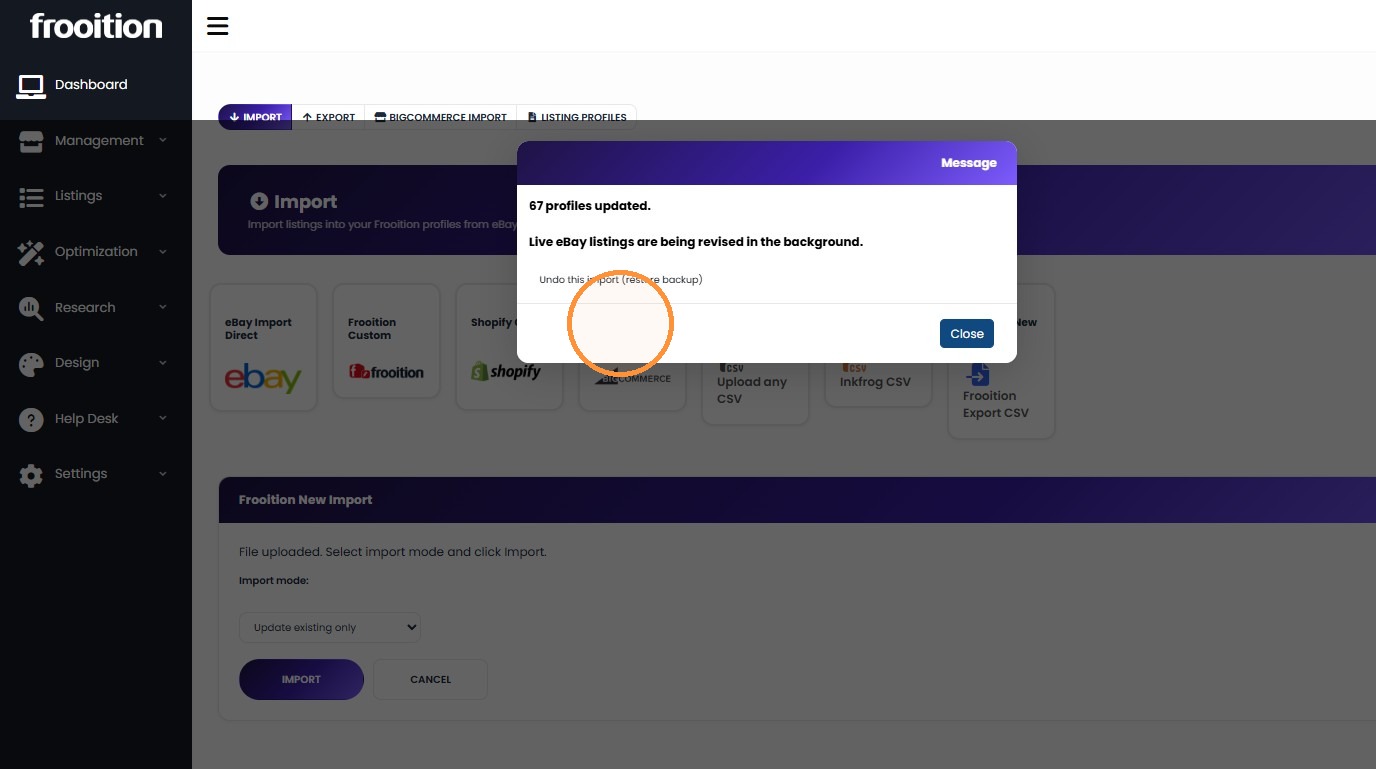
18. Dismiss the final update confirmation.
Was this article helpful?
That’s Great!
Thank you for your feedback
Sorry! We couldn't be helpful
Thank you for your feedback
Feedback sent
We appreciate your effort and will try to fix the article